Difficulty
Moderate
Steps
3
Time Required

In Progress
This guide is currently being written. Reload periodically to see the latest changes.

User-Contributed Guide
This guide is not managed by the site's staff.

Private
This guide will not appear in search results and can only be viewed by team members!
Quiz
0
-
-
In your desired scene, go to Window > Package Manager and in the second dropdown menu in the top bar select "All packages". Look for the "Post Processing " package, and click on "Install" on the lower right.
-
-
-
Create a new layer for applying post-processing effects by selecting any GameObject, clicking on "Layer" selecting "Add a new layer" and naming it however you want (for example, "Post Processing"). Only leave that layer selected if you know why you are doing it.
-
-
-
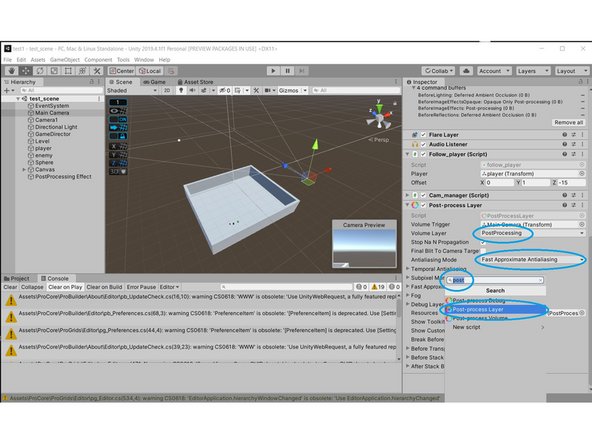
If you want to add anti-aliasing, you can select the main camera, Add a "Post Processing Layer" Component, selecting the Volume Layer you created ealier, and selecting the Antialising Mode that best suits your project (Fast Approximate Antialiasing might do the trick)
-